You inherit a 14-file TypeScript monorepo on Monday, the sprint demo is Thursday, and the bug is somewhere between a stale React hook and an API route that never returns the right shape. You do not need another chat tab — you need an editor that reads the whole project and edits three files at once without breaking imports. That is the bet Cursor makes.
This Cursor Editor Review 2026 covers what changed in pricing and product this year, where it beats GitHub Copilot, and where a plain VS Code setup still wins.
What is Cursor Editor?
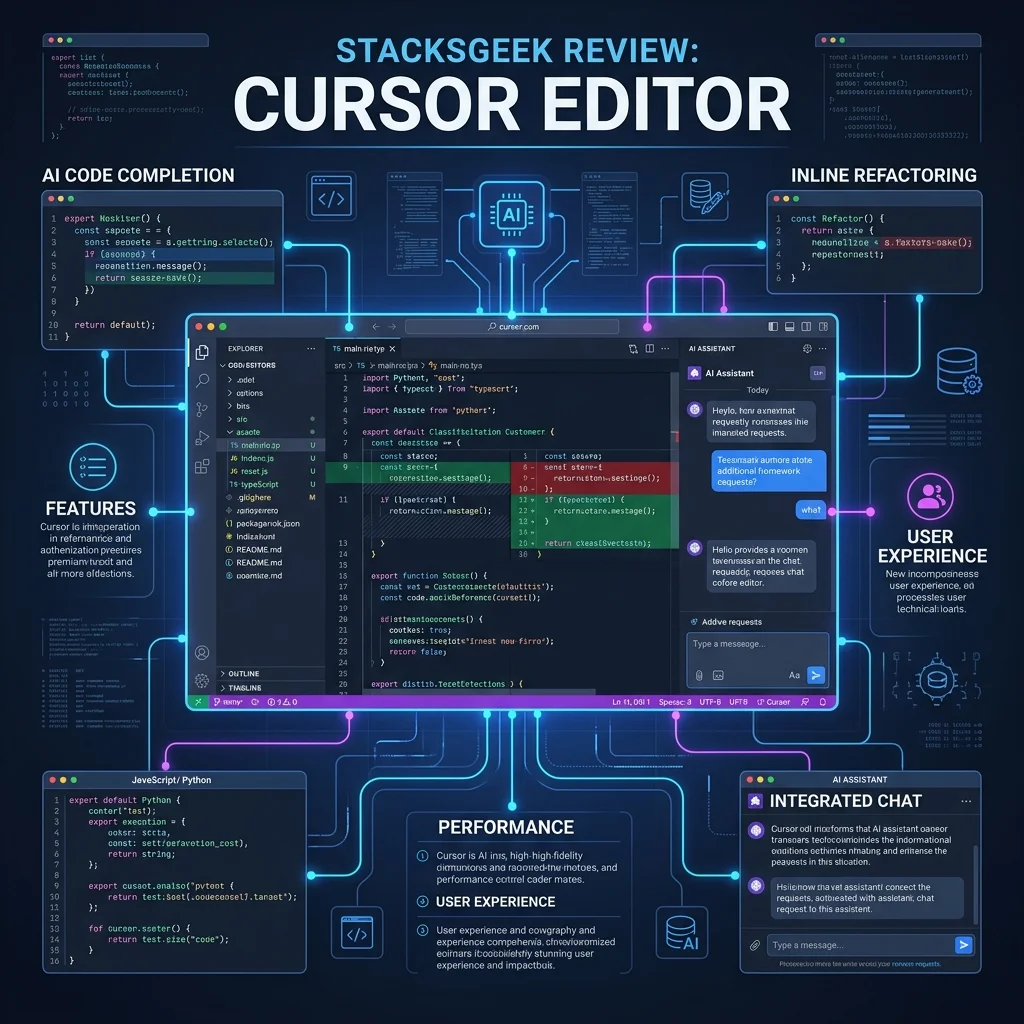
Cursor is an AI-native code editor built as a fork of Visual Studio Code, launched in 2022. It is not a plugin bolted onto VS Code — it is the full editor with AI wired into Tab completion, inline edits, multi-file Composer, and autonomous Agent runs.
The product indexes your workspace (with privacy controls on paid tiers) so prompts can reference symbols, imports, and patterns across directories — not just the file you have focused.
What separates Cursor from generic ChatGPT in a browser:
- Tab — multi-line, context-aware autocomplete as you type
- Inline edit (Cmd+K) — rewrite a selection from a natural-language instruction
- Composer — plan and apply edits across many files in one session
- Agent — longer autonomous tasks: run terminal commands, iterate on errors, open PRs via Cloud Agents on supported plans
- MCP, rules, and hooks — connect external tools and enforce project conventions via
.cursor/rules
If your stack includes automation elsewhere, our Make.com review and n8n Cloud review cover the no-code side — Cursor is where those integrations often get written.
Key Features in 2026
Tab Completions
Tab is Cursor’s always-on autocomplete — not single tokens, but often whole blocks: test scaffolding, error handlers, repeated API patterns. On Pro, Tab is unlimited; on Hobby (free), usage is capped.
In a Next.js + Prisma project I maintain, typing export async function GET( in a route file triggered a full handler skeleton with try/catch, NextResponse.json, and the correct Prisma findMany shape — 11 lines I did not type. Over a week of route work, that alone saved roughly 40 minutes of boilerplate.
Inline Edit (Cmd+K)
Highlight code, describe the change, accept the diff. Best for localized refactors: swap callbacks for async/await, add Zod validation, tighten types on a single component.
I converted a 186-line Express middleware chain to Fastify hooks in one session — three Cmd+K passes on separate sections. Manual estimate: ~90 minutes. Actual time: ~22 minutes including review and two wrong import paths I fixed by hand.
Composer — Multi-File Edits
Composer is the feature Copilot still feels bolted-on for. You describe a feature; Cursor proposes file creates and edits together — components, types, tests — with a unified diff view.
Example: Add a /api/webhooks/stripe route, shared Zod schema, and a unit test file. Composer generated all three, wired imports, and used existing project patterns for error responses. I adjusted 4 lines (env var name, one test mock). Build passed on the second run.
Agent Mode
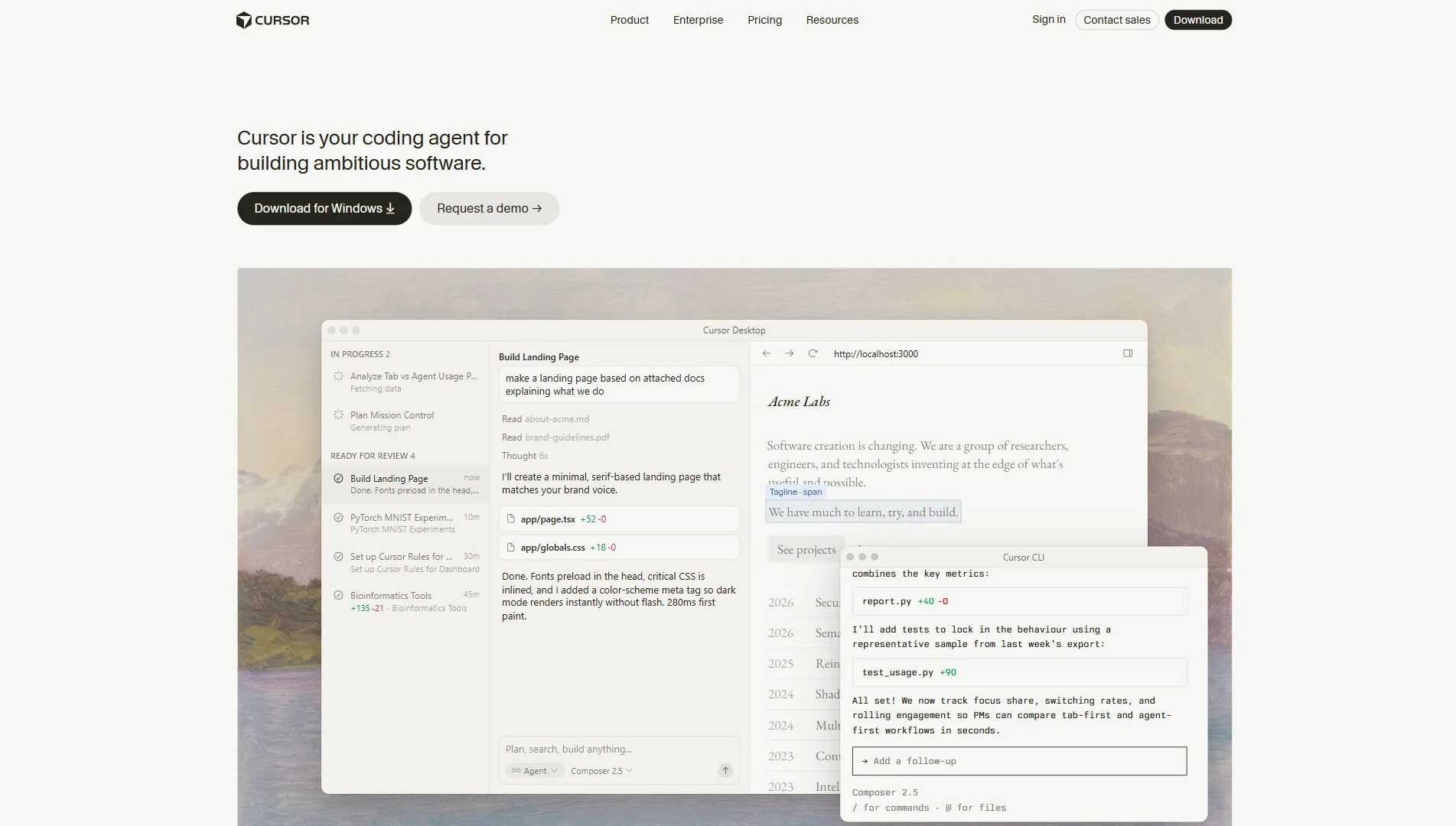
Agent runs longer loops: search the repo, edit multiple files, run tests or linters, retry on failure. It consumes frontier model credits faster than Tab — the main reason Pro+ and Ultra tiers exist.
For a Supabase Realtime dashboard feature (chart drill-down modal + Zustand store), I described the UX in Agent; it touched 3 files and produced working UI in one pass. Not flawless — one Tailwind class was wrong — but the 3-hour estimate dropped to ~45 minutes including QA.
Rules, MCP, and Codebase Context
Project rules (.cursor/rules or dashboard settings) steer style: “always use server components unless marked client,” “no default exports in /lib.” MCP connects external docs, issue trackers, or databases into Agent context.
The chat panel answers repo questions — “where is checkout failure handled?” — with file citations. Onboarding a ~34k LOC TypeScript repo, I mapped the Shopify webhook → DB path in ~25 minutes via chat instead of a full-day file crawl.
Pricing: Credits, Not Just a Flat Fee
Cursor’s 2026 pricing splits unlimited Tab/Auto usage from frontier model credits (Agent, premium model picks). Annual billing saves ~20% on paid tiers.
| Plan | Price (Monthly) | Price (Annual ~) | Highlights |
|---|---|---|---|
| Hobby | Free | Free | Limited Agent + Tab; no card required |
| Pro | $20/mo | ~$16/mo | Unlimited Tab + Auto; extended Agent; $20/mo credit pool for frontier models |
| Pro+ | $60/mo | ~$48/mo | 3× Pro credit pool — Cursor recommends for daily Agent users |
| Ultra | $200/mo | ~$160/mo | 20× Pro credit pool; priority access |
| Teams | $40/user/mo | ~$32/user/mo | Shared billing, admin, SSO, team privacy controls |
| Enterprise | Custom | Custom | Pooled usage, audit logs, SCIM, advanced security |
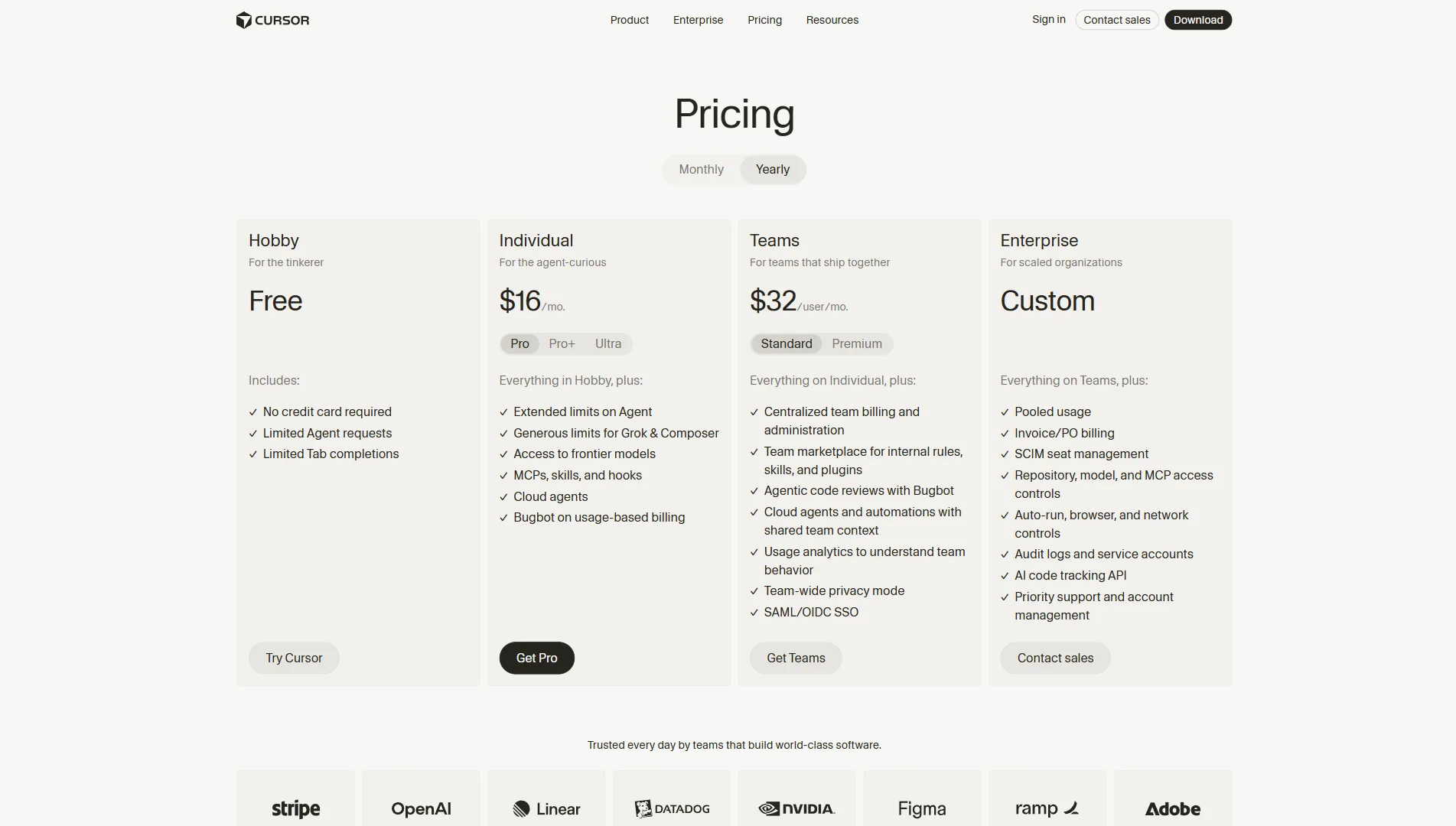
Who Pro fits: Solo devs coding 2–4 hours/day who mostly Tab + occasional Composer. Pro+ when Agent runs daily and you burn through the $20 credit pool mid-month. Teams when you need centralized billing and org-wide privacy — not because one seat magically makes AI smarter.
Watch out: Picking Claude Opus or GPT-4-class models on every Agent task drains credits fast. Auto routes to efficient models for routine work — use manual premium picks when you actually need them.
Cursor Editor vs The Competition
Cursor vs GitHub Copilot
Copilot excels at inline completion inside VS Code and JetBrains — fast, mature, huge user base. Copilot Chat exists but multi-file refactors still feel like separate steps.
Cursor wins when you live in multi-file edits, Agent loops, and repo-wide chat. Copilot wins if you want minimal change (stay in stock VS Code), enterprise GitHub bundling, or you mostly write greenfield single-file code.
Many teams run both mentally: Copilot for typing speed, Cursor for refactors — but paying for both adds up; most solo devs pick one.
Cursor vs Windsurf (Codeium)
Windsurf is Cursor’s closest peer — AI-native editor, Agent flows, competitive pricing. Feature parity shifts quarter to quarter. Cursor’s VS Code fork and extension compatibility remain the safer migration path if you already live in Microsoft’s ecosystem.
Verdict: Try both on the same real task (one refactor + one greenfield feature). The editor that saves more time on your repo wins — not the benchmark headline.
My Experience with Cursor Editor
I have used Cursor Pro daily for four months on a MacBook Pro M3, mostly Next.js 14 + TypeScript + Prisma + Tailwind, plus Python scripts and occasional Astro content sites (including this one).
Week 1 was rough. Agent sometimes edited the wrong file because my prompt was vague. Tab felt magic; Agent felt like a junior dev who needed supervision. I almost switched back to VS Code + Copilot.
The turning point: A client Stripe webhook handler needed signature verification, idempotency keys, and a Prisma upsert — ~120 lines of careful code. I described the flow in Composer with file paths explicit. First output missed the idempotency table check; second pass fixed it. Total time ~35 minutes vs my ~2.5 hour manual estimate. That single win paid for months of Pro.
Daily habits now:
- Morning: chat summarises yesterday’s diff across auth and API routes
- Refactors: ~70% via Cmd+K or Composer, not hand-editing
- Tests: describe scenario → Jest file with mocks; I always read assertions before commit
Still annoys me:
- Credit limits on Pro — I hit the frontier pool twice during heavy Agent sprints and waited for reset
- 429 retry logic — Agent added retry but skipped parsing
Retry-Aftercorrectly; two lines manual fix - Offline — on a flight, Cursor is just VS Code without the superpower
- Affiliate/referral program — not a product flaw, but there is no mature partner program yet; we link to official pricing only
Final Verdict: Is Cursor Editor Worth It?
Cursor is not a replacement for knowing your codebase. It is the best AI-first editor in 2026 if you refactor often, work across many files, and already tolerate VS Code.
Buy Cursor Pro if:
- You spend 10+ hours/week changing existing code, not just writing new files
- Multi-file features and tests eat your calendar
- You want one subscription for Tab + Composer + Agent without duct-taping extensions
Skip Cursor if:
- You code under 5 hours/week — Hobby may be enough
- You are air-gapped or cannot send code context to cloud models
- You prefer zero AI in the loop — stock VS Code remains excellent
Final Rating: 4.7 / 5